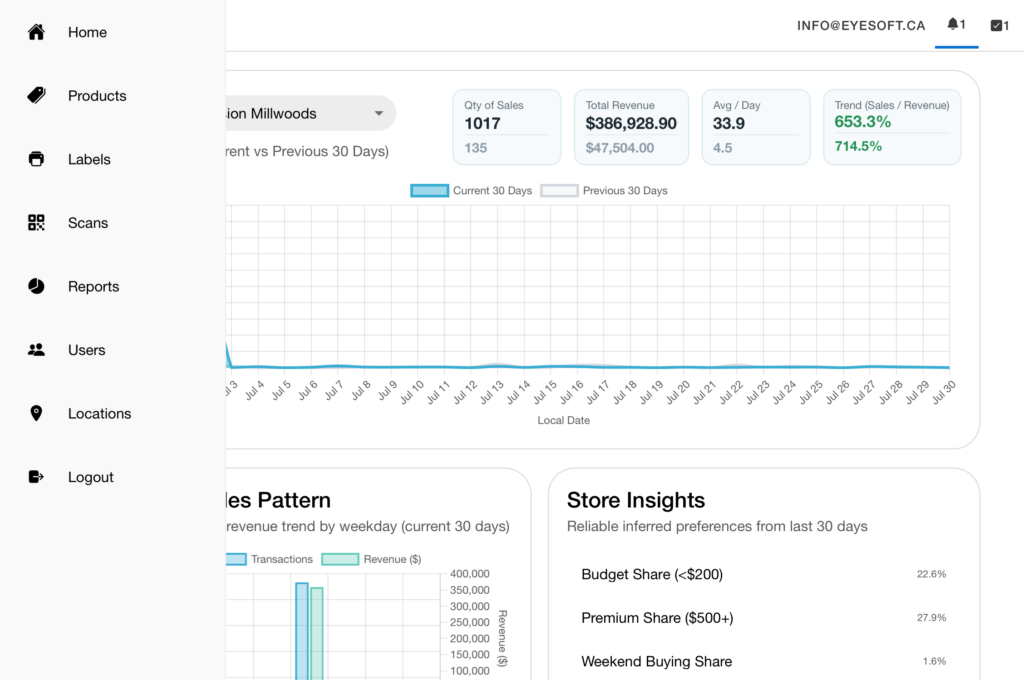
Step 1: Go to app.eyesoft.ca and login
Step 2: Once logged in go to Scans on the left sidebar
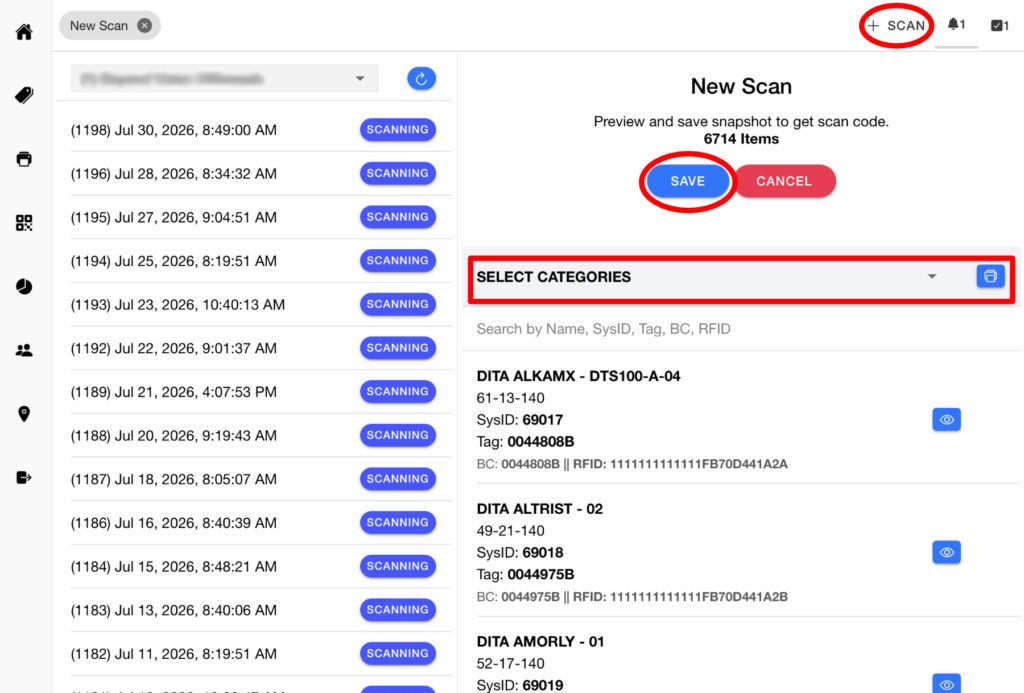
From here click New Scan on the top right of the screen. This will load all the items in stock and give you a preview. You can use the “Select Categories” to filter which product types you want to scan
Then click SAVE and the system will create the new scan instance
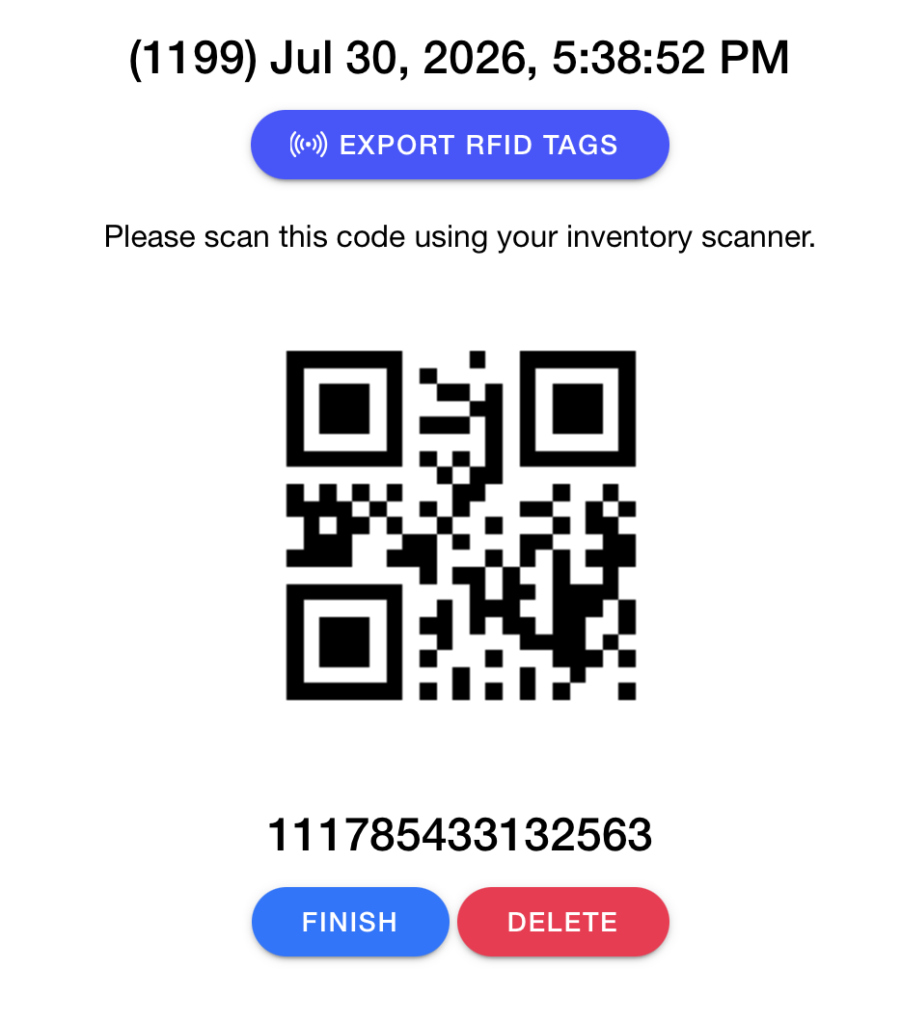
Once you save you will see a QR code generated. Using the handheld scanner you can scan this QR code or type in the number below to pair the scanner
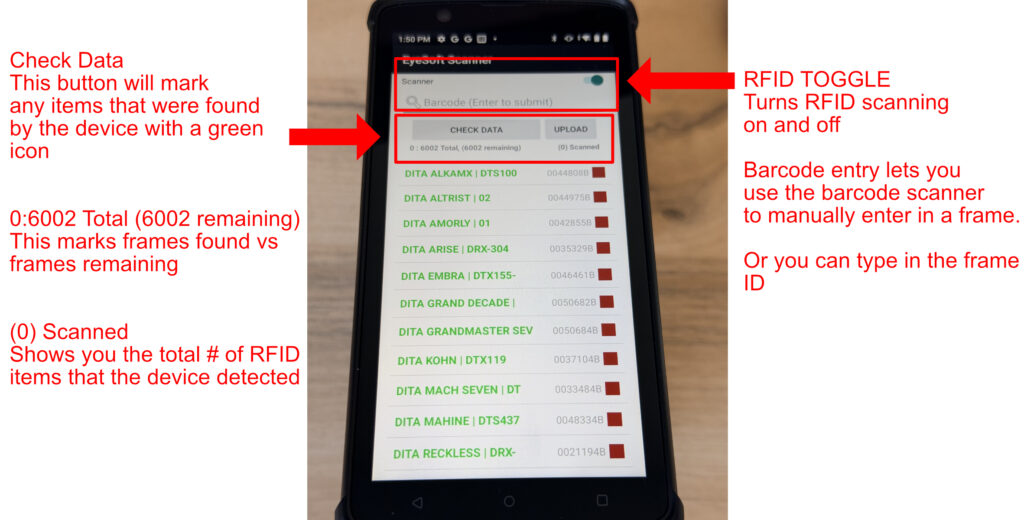
From your handheld device scan the QR code and it will sync the products
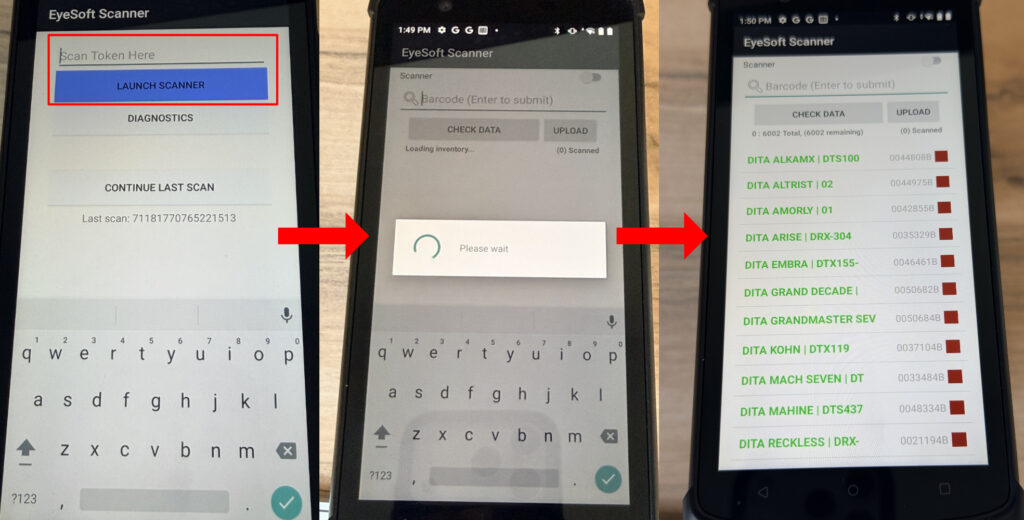
These are the main functions of the RFID scanner. Items will be marked with a green icon that have been found and red icon means they are not found yet. Periodically you can click Check Data to update the list. Pressing any item will perform a lookup of the frames design